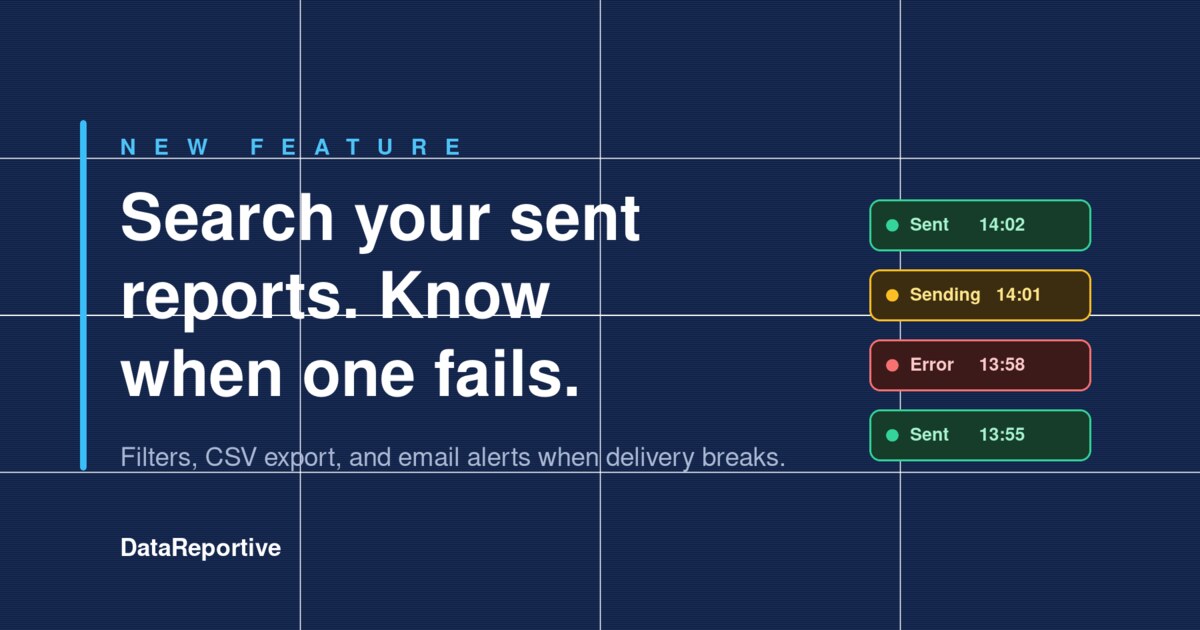
Two changes have just shipped to make scheduled report delivery less of a black box. The first is a fully searchable history of every sent report, with filters and CSV export. The second is optional email notifications when a report fails to send. Both are aimed at the same thing: less guesswork about whether your reports actually went out, and faster response when they didn't. If you run more than a handful of scheduled reports, this is for you.
Find any sent report
Open the report history and you can now search by report name, schedule name, or recipient email address. You can also type a status word like Sent or Error to filter by outcome.
Filters let you narrow the list by status (Sent, Error, Sending, Condition not met), by method (Email or Slack), and by whether the report was sent manually or on a schedule. Sort newest or oldest first, whichever is more useful for what you're chasing.
A time period control lets you scope to the last day, the last few days, the last week, the last fortnight, the last month, or the last three months. Leave it on All time for the full record.
When you've got the view you want, Download CSV exports the filtered list, up to 20,000 rows. Useful if a customer asks whether the September report went out, or if you want to pull the numbers into another tool without manually cleaning up the file first.
Know when a report fails to send
Before today, the most common way to find out that a scheduled report had silently failed was to notice it hadn't arrived. That gap is now closed.
You can choose which admins receive an email when a report fails to send. This covers both manual sends and scheduled reports. Manual send failures trigger a notification straight away. Scheduled failures are grouped into a single summary email per run, so one bad afternoon doesn't fill anyone's inbox with one alert per broken schedule.
The email lists which reports or schedules were affected. It deliberately doesn't include the underlying error, query details, or anything else technical, so it's safe to forward to non-engineers who need to know but don't need to debug.
If the failure is caused by something on our side, we get the same alert and look into it.
How to turn it on
In Settings → Organisation Settings, under Schedules and alerts, look for Email admins when reports fail. Pick the people who should be in the loop and save.
Log into your DataReportive account to try the new history view and set up failure notifications. Got feedback on either? We'd love to hear it.